Sending a Request & the Signing Portal
Sending a Request & the Signing Portal
Sending
Once a request has a source PDF, at least one signer, and its required signing fields placed, send it via Frappe Sign -> Send Request.
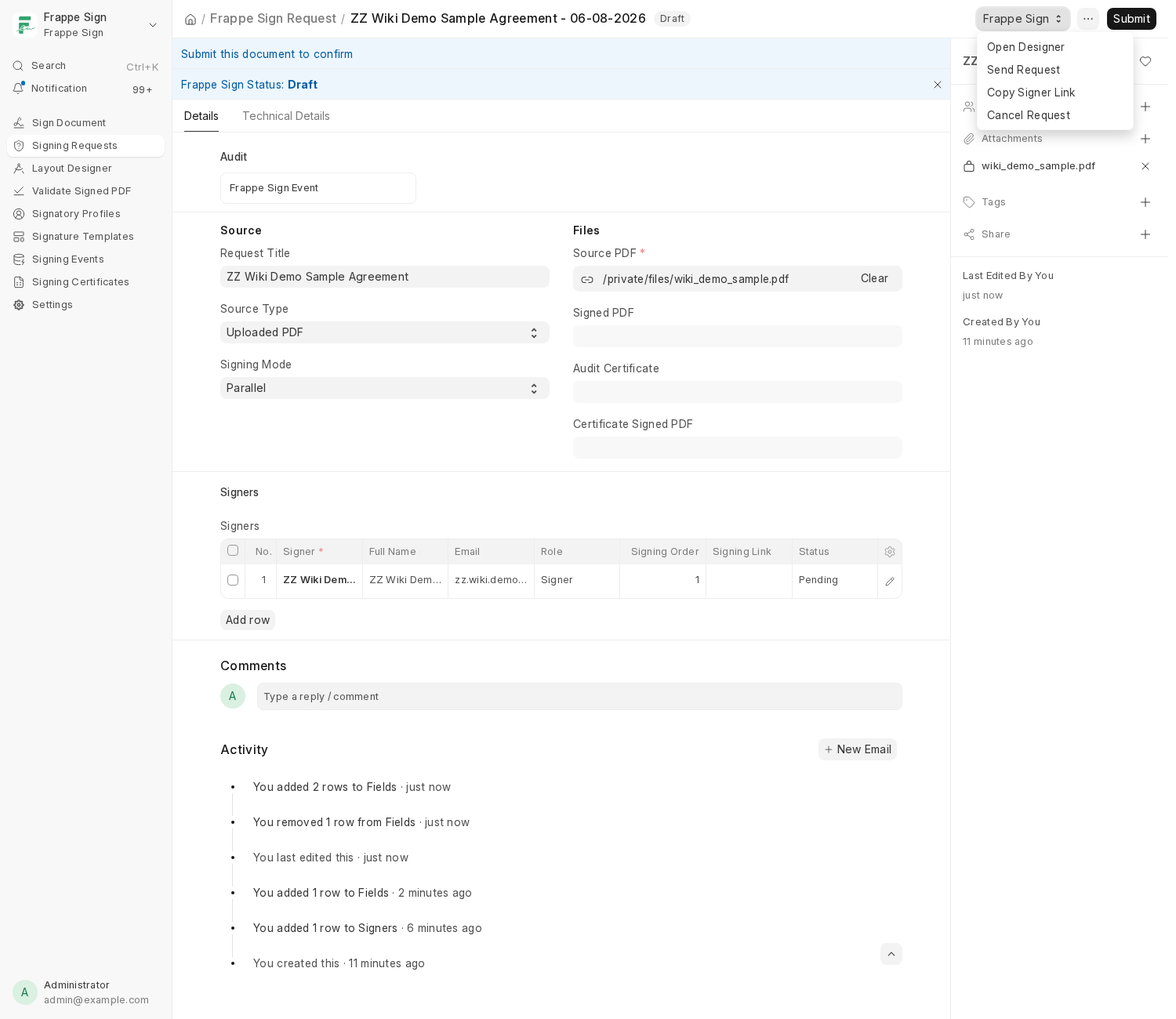
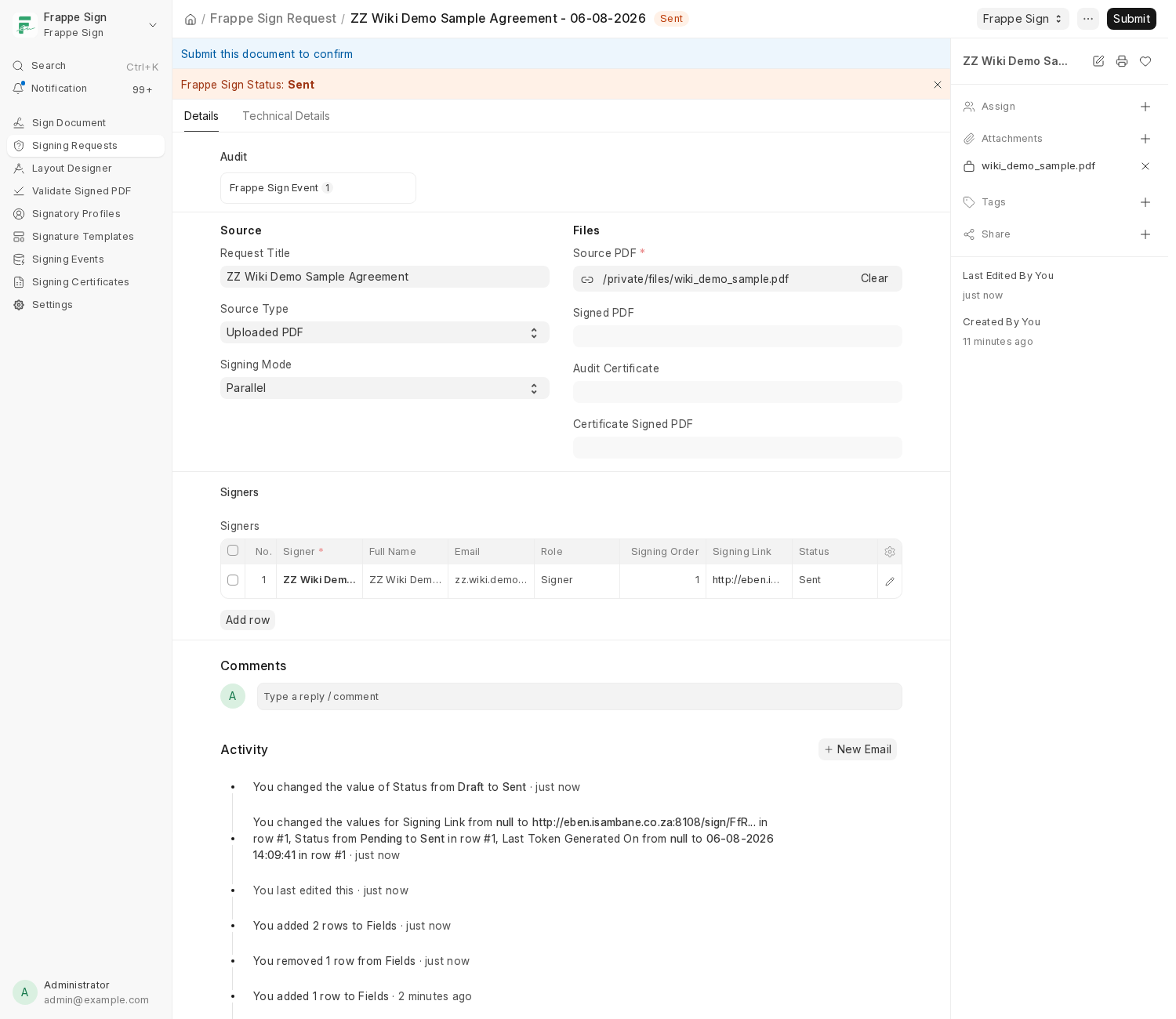
Frappe Sign validates all of that, generates a stable signing link per eligible signer, emails them, and moves the request to Sent. For sequential signing, only the current order (or cohort) is notified initially - the rest are notified as earlier signers complete.
The signing portal
Each signer gets their own link at /sign/<token> - unique to them, and it should never be shared. The portal shows the Electronic Signature Notice, and, if Require Signature Consent is enabled in Settings, asks the signer to consent before they can use a saved signature.
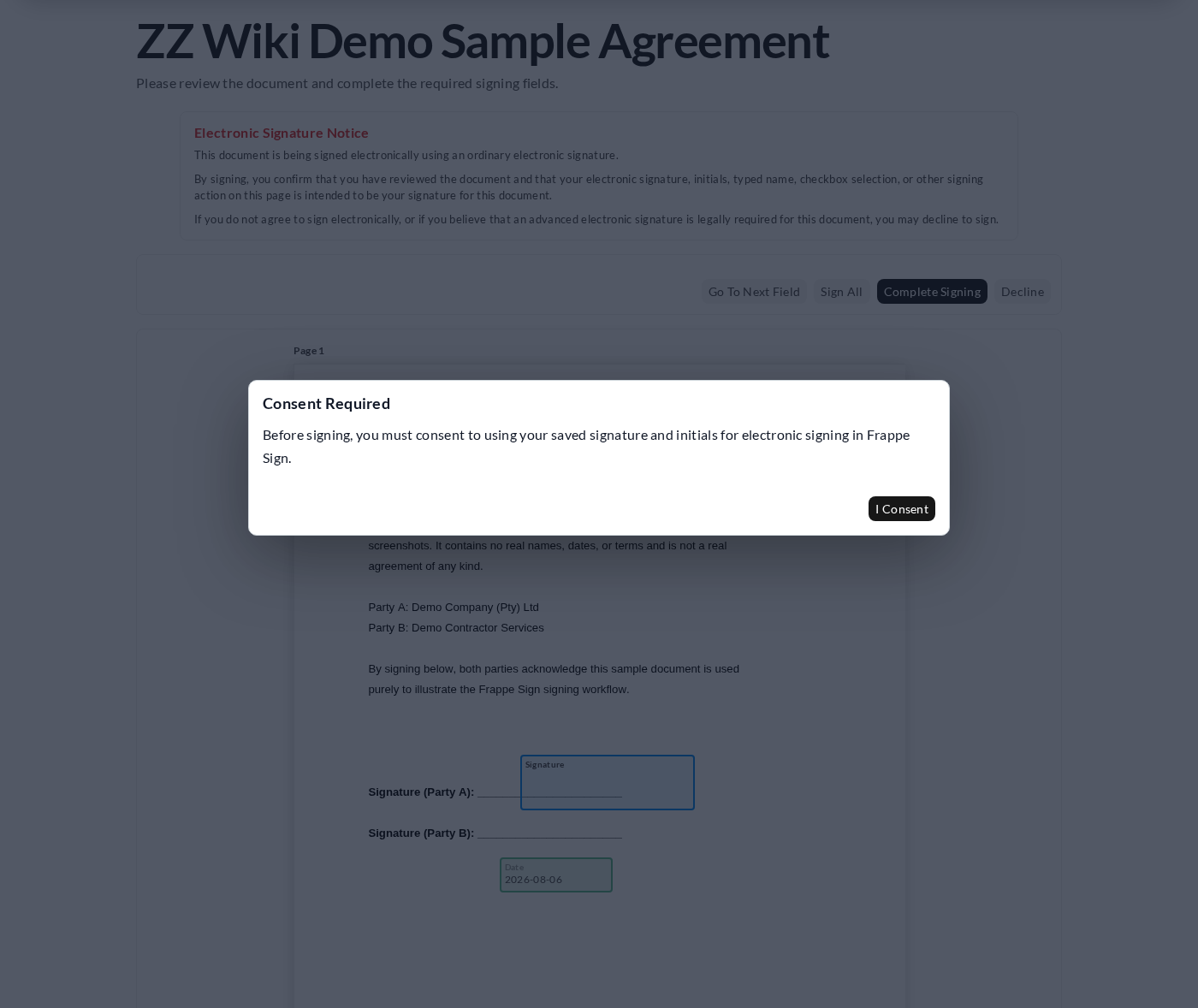
If the signer has no saved signature yet, a setup dialog opens right there so they can draw, upload, or type one on the spot - it's saved to their Signer Profile for next time. Once a signature exists (saved just now, or from an earlier request), Sign All applies it to every field assigned to them, or they can fill each field individually:
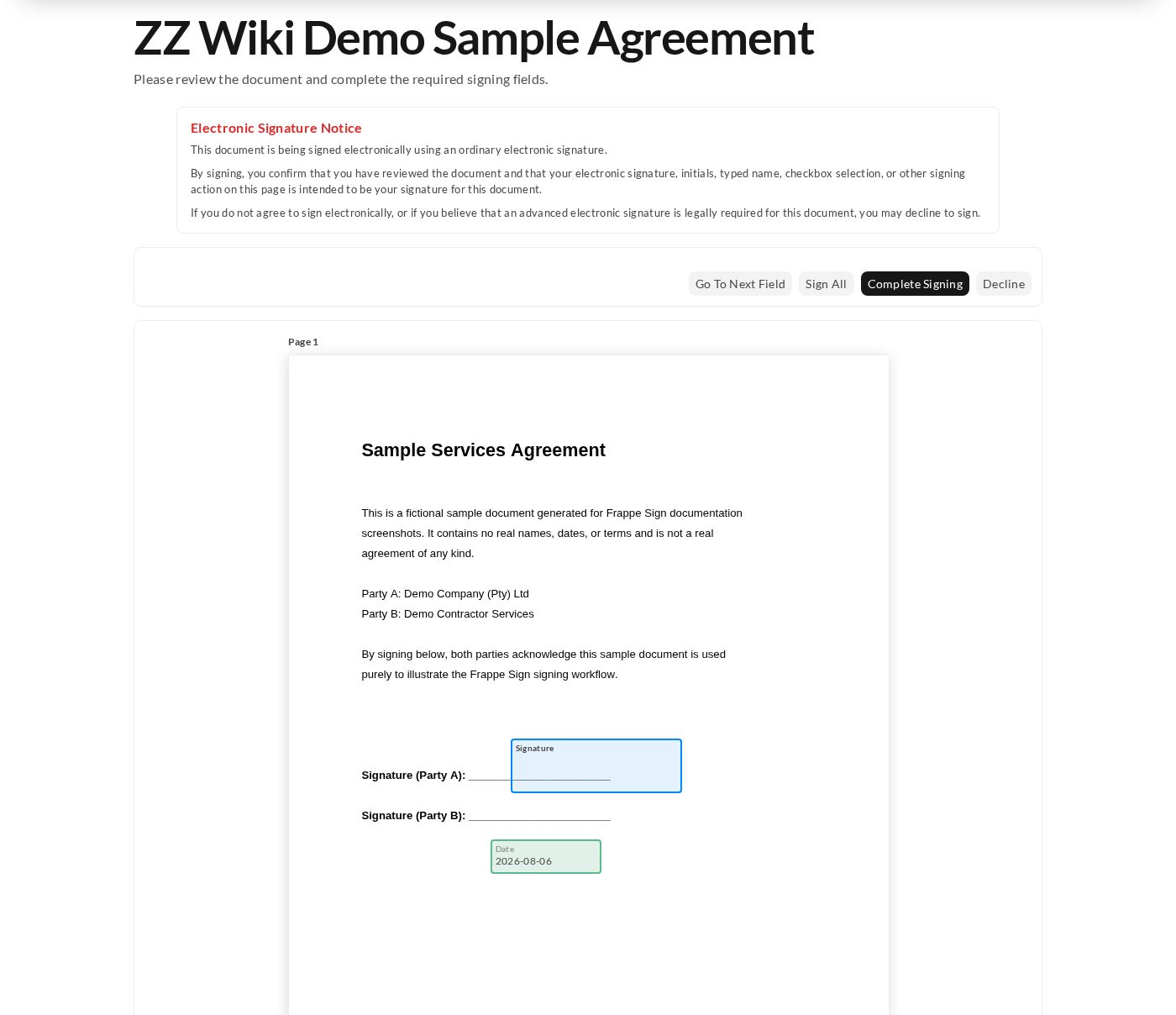
The signer can then:
- Complete Signing - finalizes their part.
- Decline - refuses to sign electronically (e.g. if they believe an Advanced Electronic Signature is legally required - see Overview & Legal Notice).
- Go To Next Field / navigate between fields on longer documents.
Once every required Signer has completed their fields, the request itself finishes automatically - see Completing a Request, Certificates & Verification.