Configured Source DocTypes
Before anyone can send a signing request straight from a document (a Site Transfer Form, a Contract of Employment, a Leave Application and so on), that DocType needs a row in Frappe Sign Settings → Configured DocTypes.
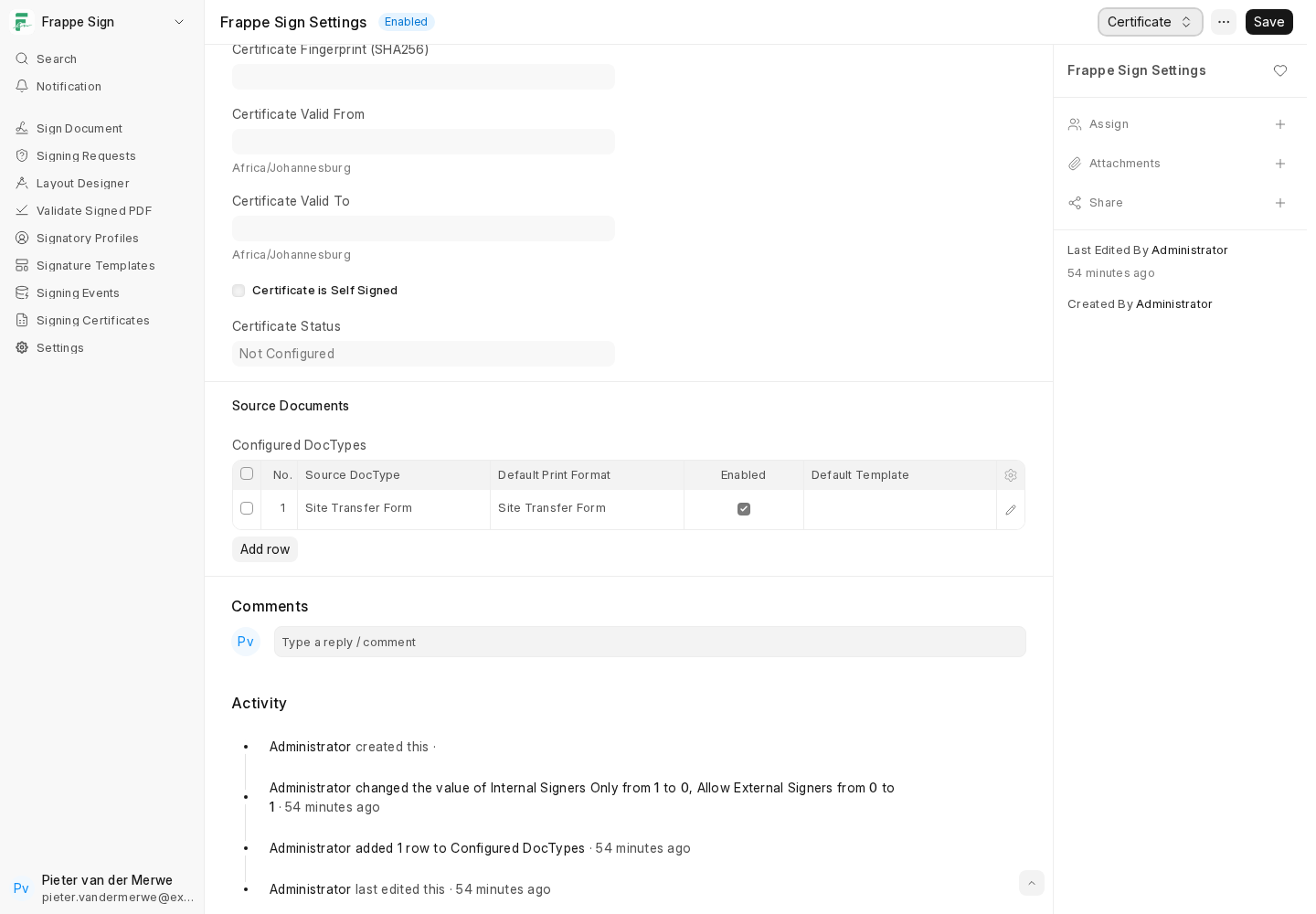
Open a row with its edit (pencil) icon, or use Add Row for a new one:
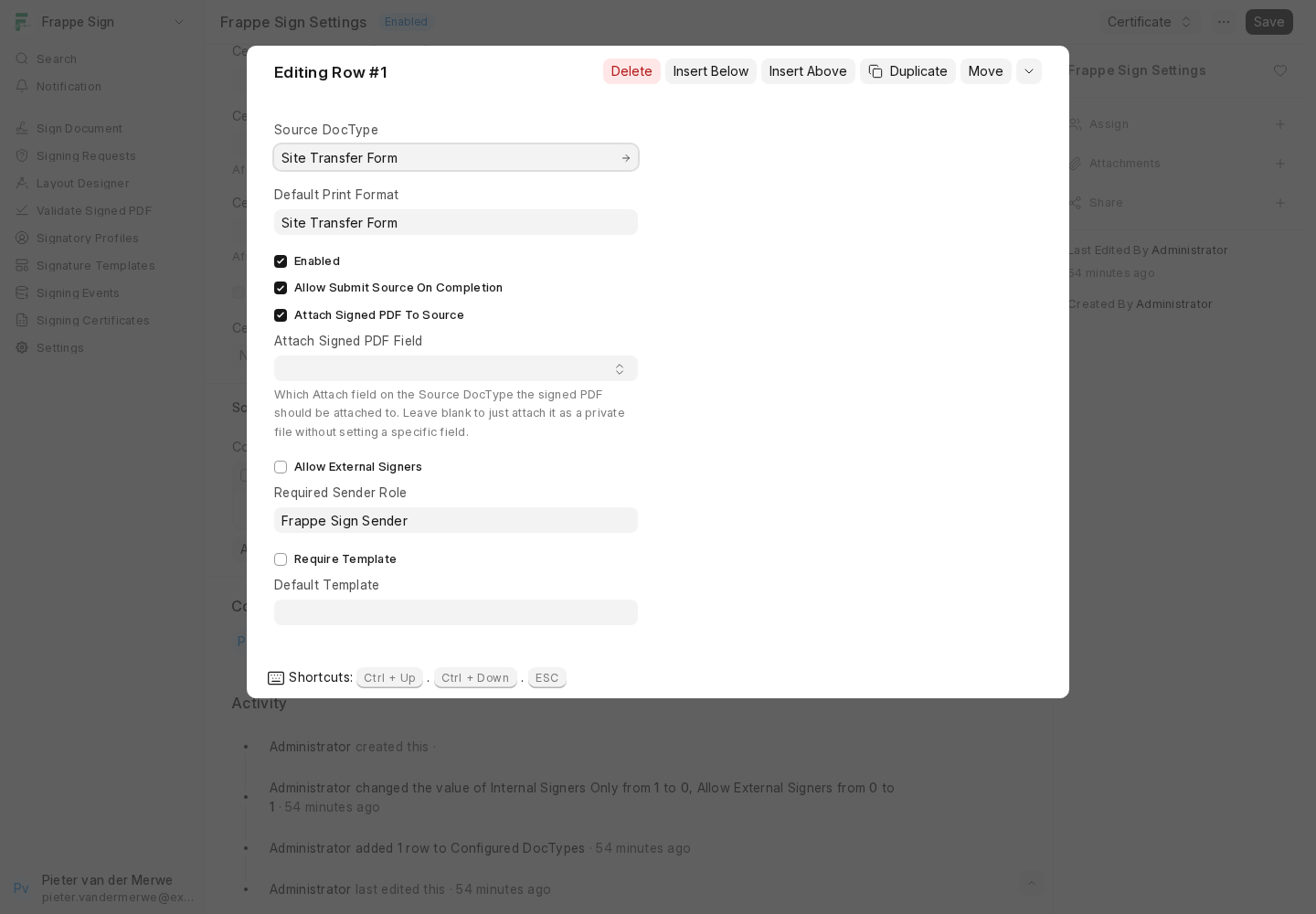
| Field | What it does |
|---|---|
| Source DocType | The DocType this row applies to. |
| Default Print Format | The Print Format used to render the document to PDF. Only Print Formats belonging to the Source DocType are offered. If left blank, the sender is asked to choose one. |
| Enabled | Turns this DocType on or off as a signing source without deleting the row. |
| Allow Submit Source On Completion | Submits the source document automatically when its signing request completes, if the document is submittable and still a draft. |
| Attach Signed PDF To Source | Attaches the final signed PDF to the source document as a private file when its request completes. Off by default. |
| Attach Signed PDF Field | Shown once the checkbox above is on. Lists the source DocType's own Attach / Attach Image fields, so the signed PDF also lands in a visible field on the record. Leave blank to only attach the file. |
| Allow External Signers | Whether requests from this DocType may include external signers. |
| Required Sender Role | If set, only users with this role see the Frappe Sign button on this DocType. |
| Require Template / Default Template | Makes requests for this DocType start from a pre-defined field layout. See Templates. |
Tip: the Attach Signed PDF Field looks blank after saving. Its list of fields is only filled in when you pick the Source DocType. When you reopen a saved row the field appears empty, but the stored value is still used, and new requests show it. To change it, re-select the Source DocType (which clears the field) and then pick the field again.
Snapshotted per request
The "on completion" settings are copied onto each Frappe Sign Request when it is created, as Attach Signed PDF To Source, Attach Signed PDF Field and Submit Source On Completion. Changing the Settings row later never changes a request that is already in progress. The sender can see, and override, these fields on the request until it is sent.
On completion you can see the result on the source document: the signed PDF in the chosen field, and the document submitted.
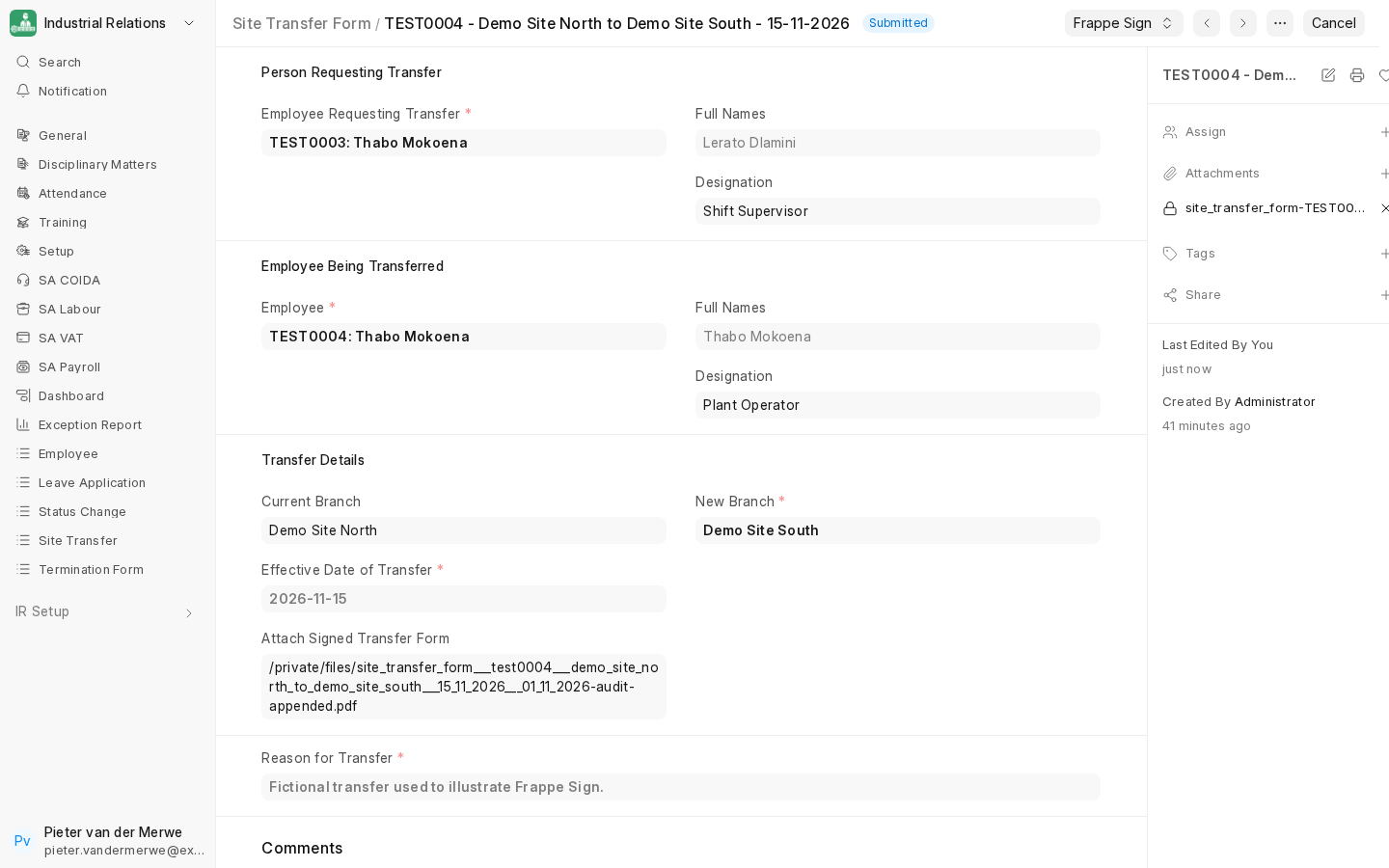
Attaching and submitting happen after the request itself completes. If either action fails, for example because the source document fails its own validation on submit, the signing request still completes and the failure is logged. Always check the source document after an important request completes. The request's Signing Events show Signed PDF Attached To Source and Source Document Submitted when these actions succeed.
Next: give each signer a Signer Profile.