This page is for signers: anyone who has been asked to sign a document with Frappe Sign. You can sign from the link in your email, or, if you have a Frappe user account, from the Sign Document page in Desk.
Signing from your email link
You receive an email with the document title and a button or link to open it. The link is unique to you: do not forward it. Anyone holding the link can act as you on that document.
Internal signers may be asked to log in first (if Require Login For Internal Signers is on). External signers go straight to the document.
Once the page has opened, the address bar shows /sign/redacted instead of your link. This keeps your link out of browser history and page analytics. It also means that refreshing the page, or copying the address, won't work: always reopen the document from the link in your email.
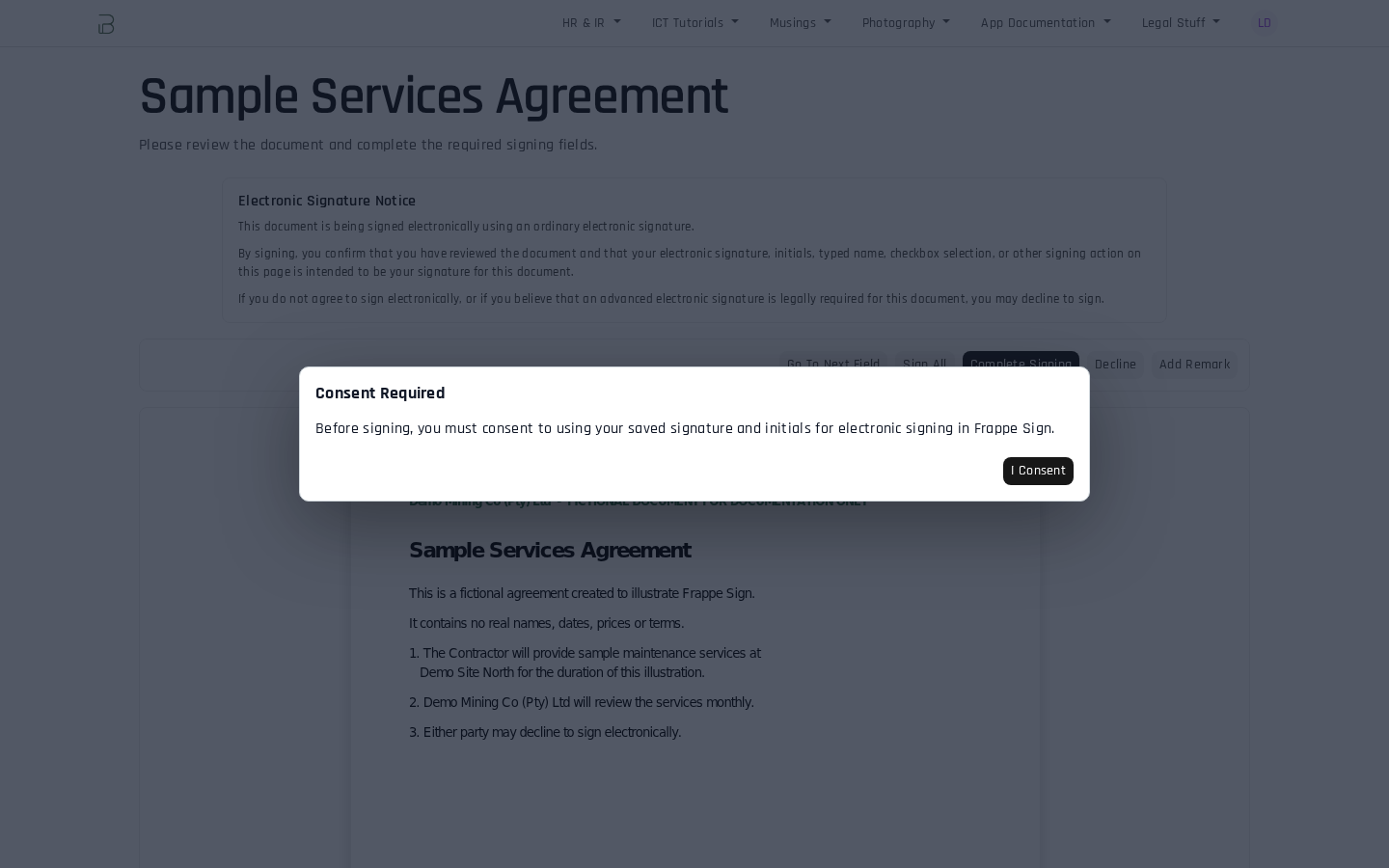
1. Give consent (first time only)
If your organisation requires it, you are asked to consent to using your saved signature and initials for electronic signing. Click I Consent to continue.
2. Set up your signature (first time only)
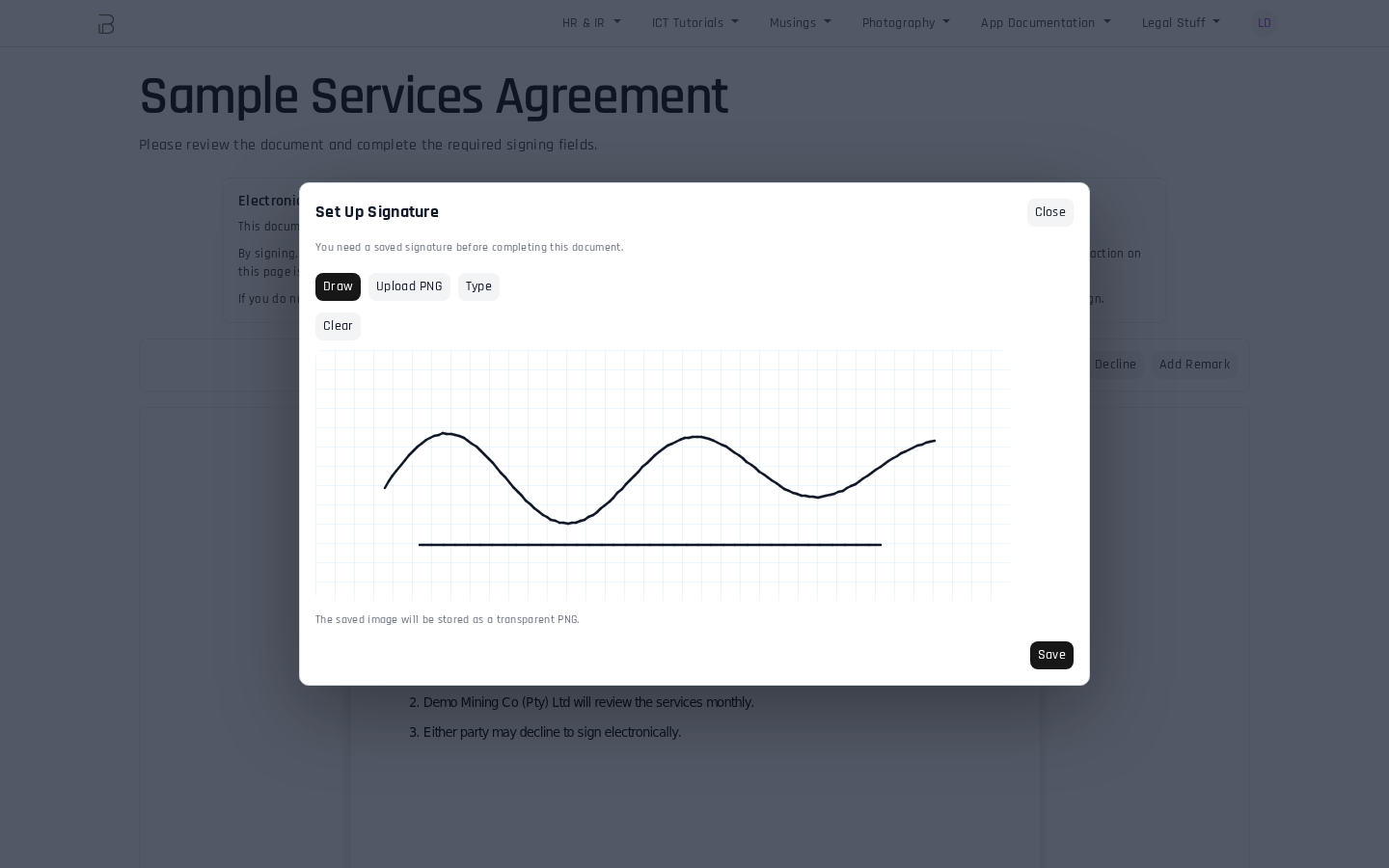
If you don't have a saved signature yet, a Set Up Signature dialog opens. Choose:
- Draw: sign with your mouse, finger or stylus. Clear starts again.
- Upload PNG: upload an image of your signature.
- Type: type your name.
Click Save. If your document also has Initials fields, the same dialog asks for your initials next. Both are saved to your Signer Profile for next time.
3. Review and complete your fields
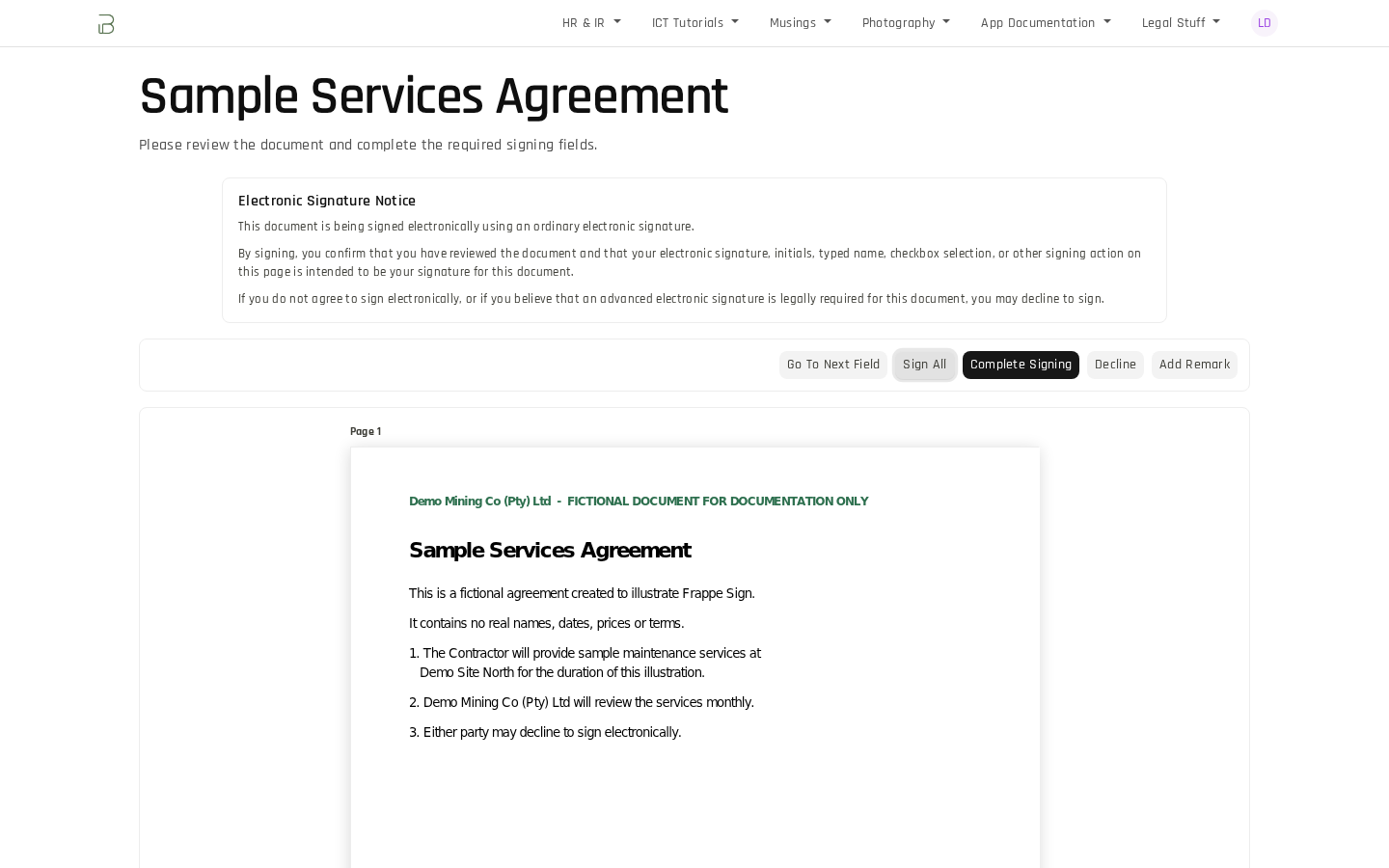
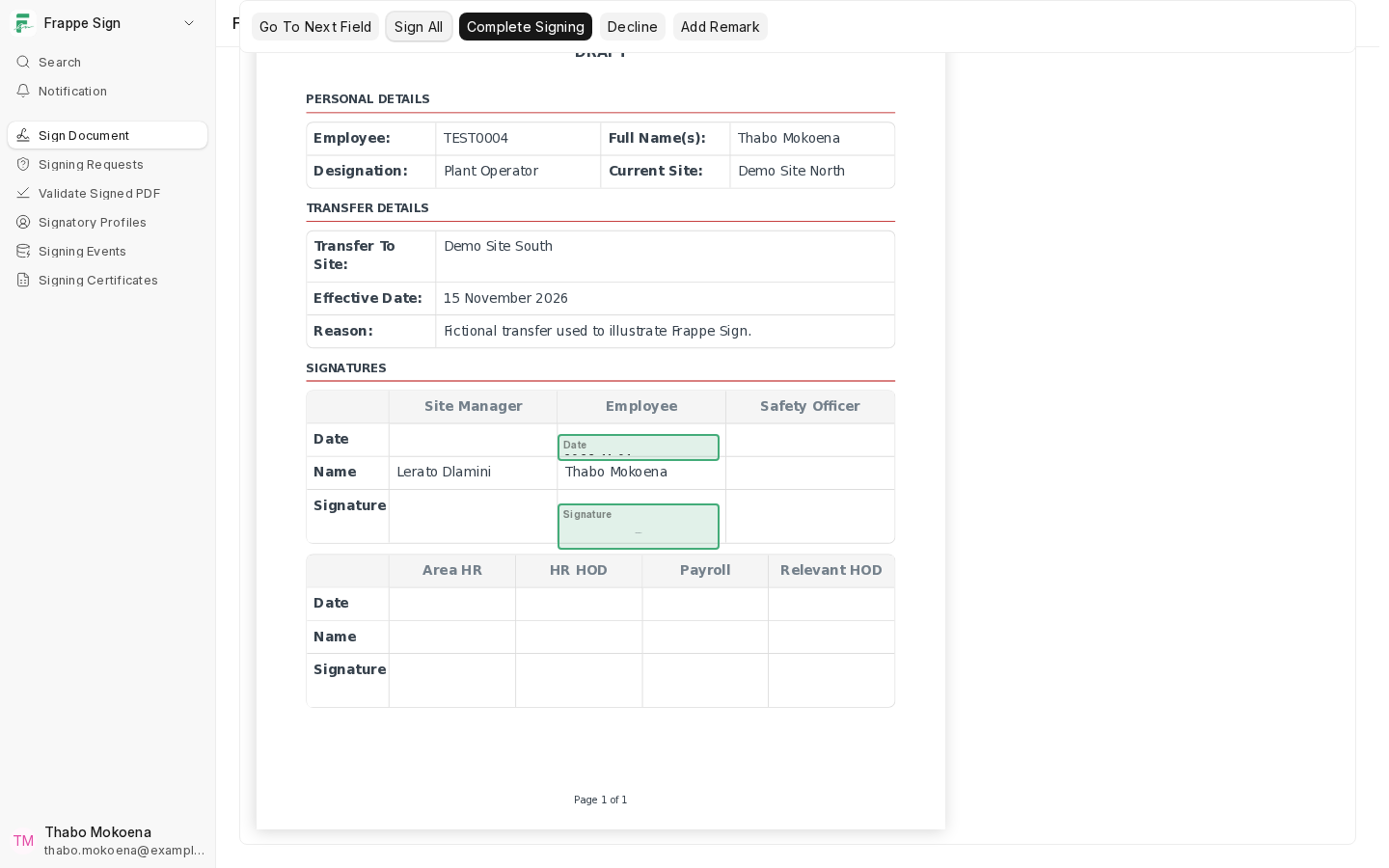
Read the Electronic Signature Notice and the whole document. Your fields are highlighted. Use the toolbar:
- Go To Next Field jumps to your next unfilled field.
- Sign All applies your saved signature and initials to all of your Signature and Initials fields. Date, Name and Email fields fill in automatically.
- Fill in any Text fields and tick any Checkbox fields yourself.
4. Complete signing
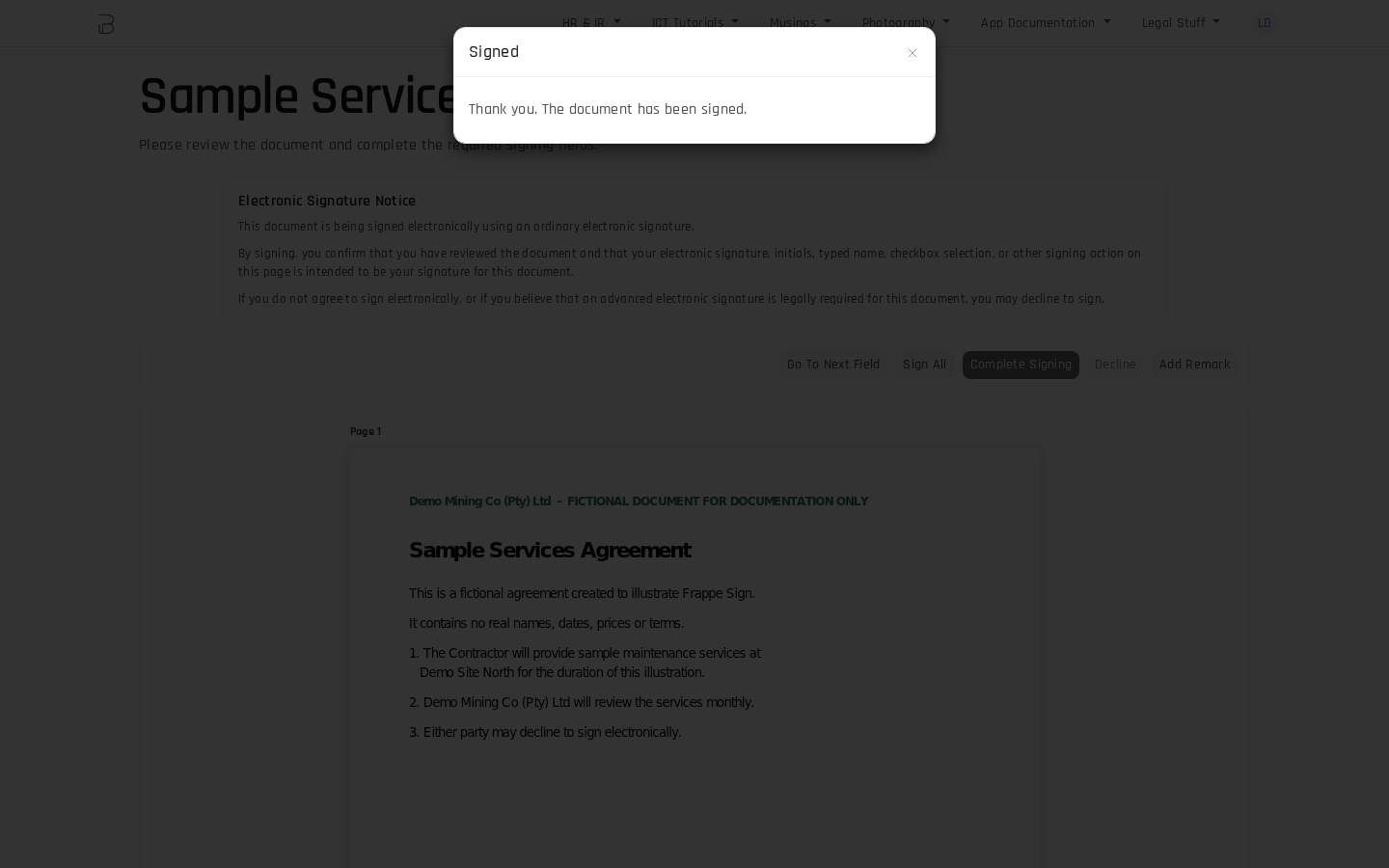
Click Complete Signing. If a required field is still empty, you are told so and taken to it. Otherwise you see "Thank you. The document has been signed." and the buttons are disabled.
External signers
An external signer follows exactly the same steps, without logging in. The video below shows an external signer typing a signature and ticking a checkbox field:
Signing from Desk: the Sign Document page
Signers with a Frappe user account can open Sign Document from the Frappe Sign sidebar (or click the Frappe Sign tile on the apps screen). It lists every outstanding request assigned to your profile, marked Ready or Waiting (waiting for an earlier signer in a sequential request).
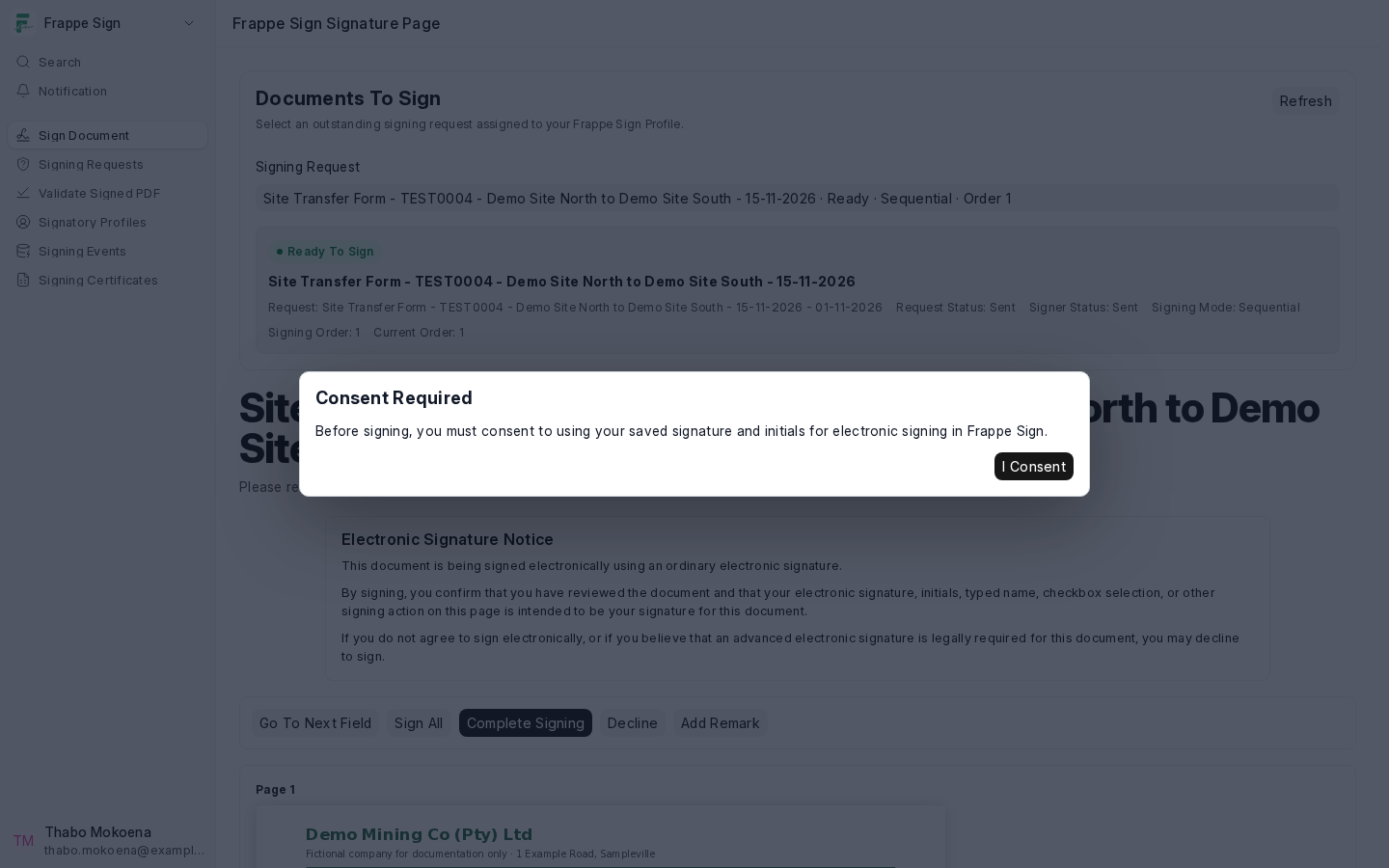
Pick a request in Signing Request to open it right there, then sign exactly as described above.
Declining
If you do not agree to sign electronically, or believe an Advanced Electronic Signature is required, click Decline. You are asked for a reason. Declining:
- marks you as Declined and the request as Declined (a terminal state; nobody else can sign it);
- records your reason on the request and in its audit trail;
- emails the other signers that you declined.
Adding a remark instead of signing
If something in the document needs to be raised before you sign, use Add Remark. See Remarks & Re-signing.
If your link doesn't work
- "This signing request is waiting for an earlier signer." It is not your turn yet in a sequential request. You will get an email when it is.
- "Invalid signing link" means the request has been completed, declined or cancelled, or you have already signed. You also see it if you refresh the signing page: open the link from your email again.
- "This signing request is currently marked as Expired." The request passed its expiry date. Ask the sender for a new request.
- Asked to re-sign after a remark? Your original link (or the one in the Please re-sign email) works again. See Remarks & Re-signing.
Contact the person who sent you the document if you need a new link.