Remarks & Re-signing
A remark is a note that a signer pins to a spot on the document while the request is still open, for example "Please confirm that clause 2 refers to a monthly review". Remarks are visible to everyone on the request, and are recorded in the request's audit trail.
Turning remarks on or off
Each request has an Allow Remarks checkbox in its Remarks section, on by default. Turn it off before sending if signers should not be able to add remarks to that document.
Adding a remark (signers)
Only rows with the Signer role can add remarks, and only while the request is open.
- On the signing page, click Add Remark. The button highlights while you are placing a remark.
- Click the spot on the document the remark is about.
- Type the remark and click Save Remark.
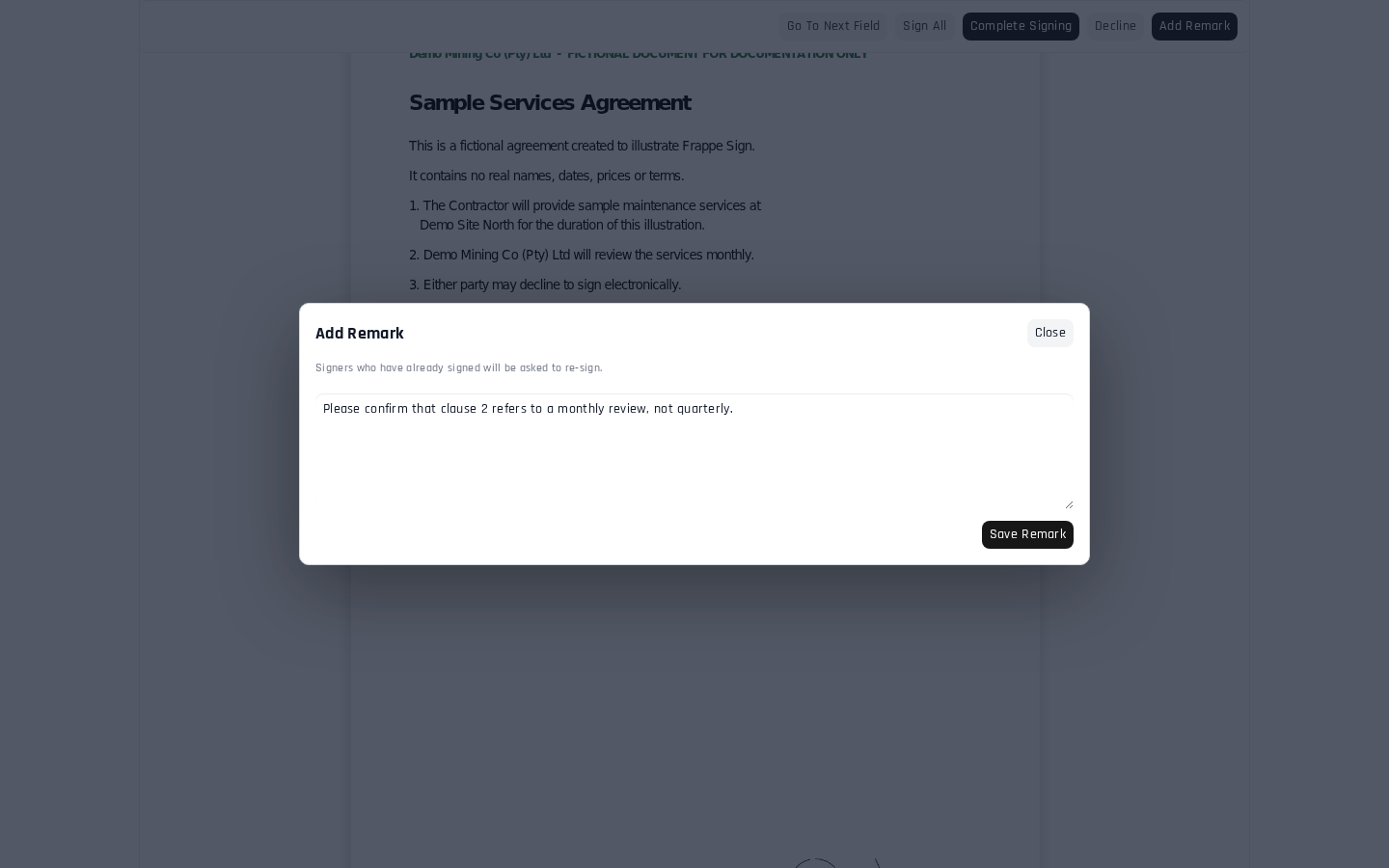
The remark appears as a ! pin on the page, with the author's name and text, for every signer who opens the document.
What a remark does to signatures already given
A remark means the document others signed has changed. So when a remark is added:
- every Signer who has already signed is set to Needs Re-Sign and emailed "Please re-sign: …" with the remark text;
- the request's status becomes Changes Added;
- in a sequential request, signing rewinds to the earliest signer who must re-sign, so later signers (including the one who added the remark) wait until the earlier signers have signed again.
Signers who have not signed yet are not affected; they simply see the new remark when they open the document.
On the request, the managers and sender can see the remarks in the Remarks table and the status changes in the activity log:
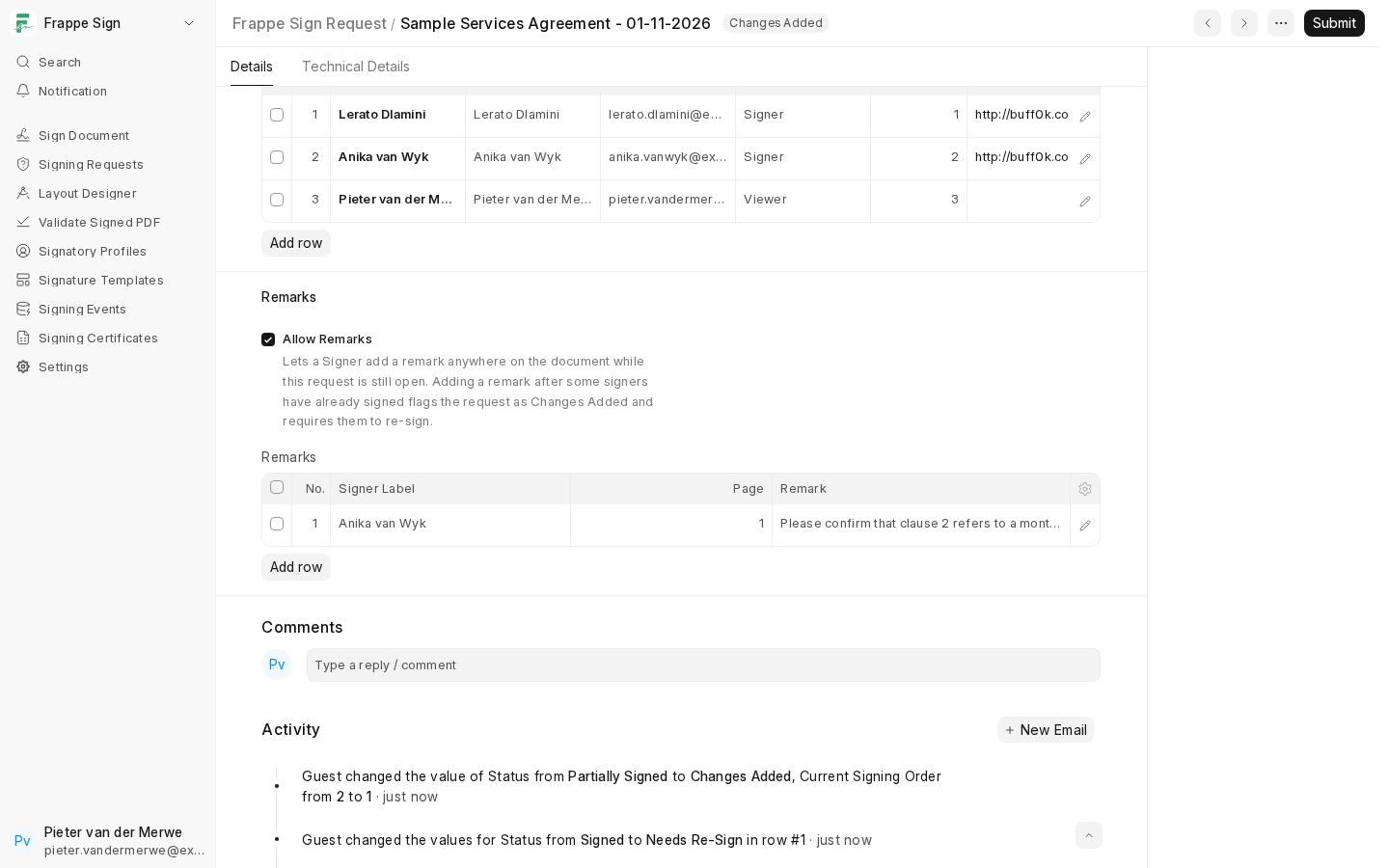
Every remark is also recorded as a Remark Added event, which appears in the audit certificate. Remarks are not stamped onto the signed PDF itself.
Re-signing
A signer marked Needs Re-Sign signs again exactly as before:
- from the Please re-sign email link (the original signing link keeps working), or
- from the Sign Document page in Desk and the Documents To Sign portal page, where the request is listed again.
The remark is shown as a pin on the document so they can see what changed:
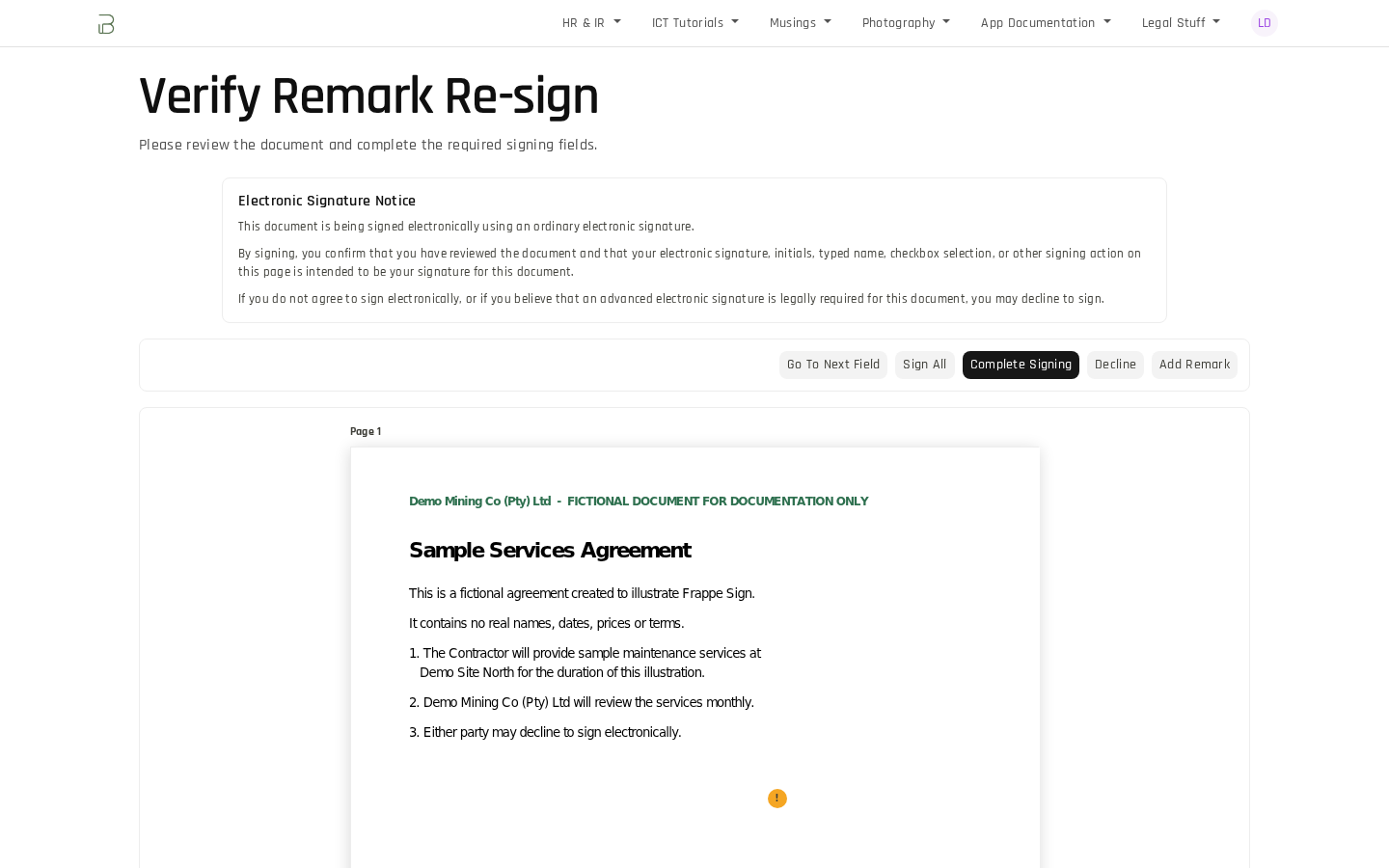
Once every signer who had to re-sign has done so, the request returns to Partially Signed and signing carries on in order. When the last signer finishes, the request completes as normal.
Stopping a request in Changes Added
If the remark means the document itself has to change, cancel the request with Frappe Sign → Cancel Request, which is available in Changes Added too, then correct the document and send a new request. See Cancelling a Request.