Status Change Form
A Status Change Form records any formal change to an employee's position as a dated, signed document rather than a silent edit to the Employee record. That covers:
- a change of designation, such as a promotion;
- a site transfer, a move to another Branch. This used to have its own Site Transfer Form, which has been removed (see Site Transfer Form (Removed));
- a change of conditions of employment, such as fixed term to indefinite;
- a change of pay: any earning Salary Component, such as the hourly rate, basic salary or an allowance.
One form can record several changes at once, for example a promotion with a new rate and a move to another site.
Filling in the form
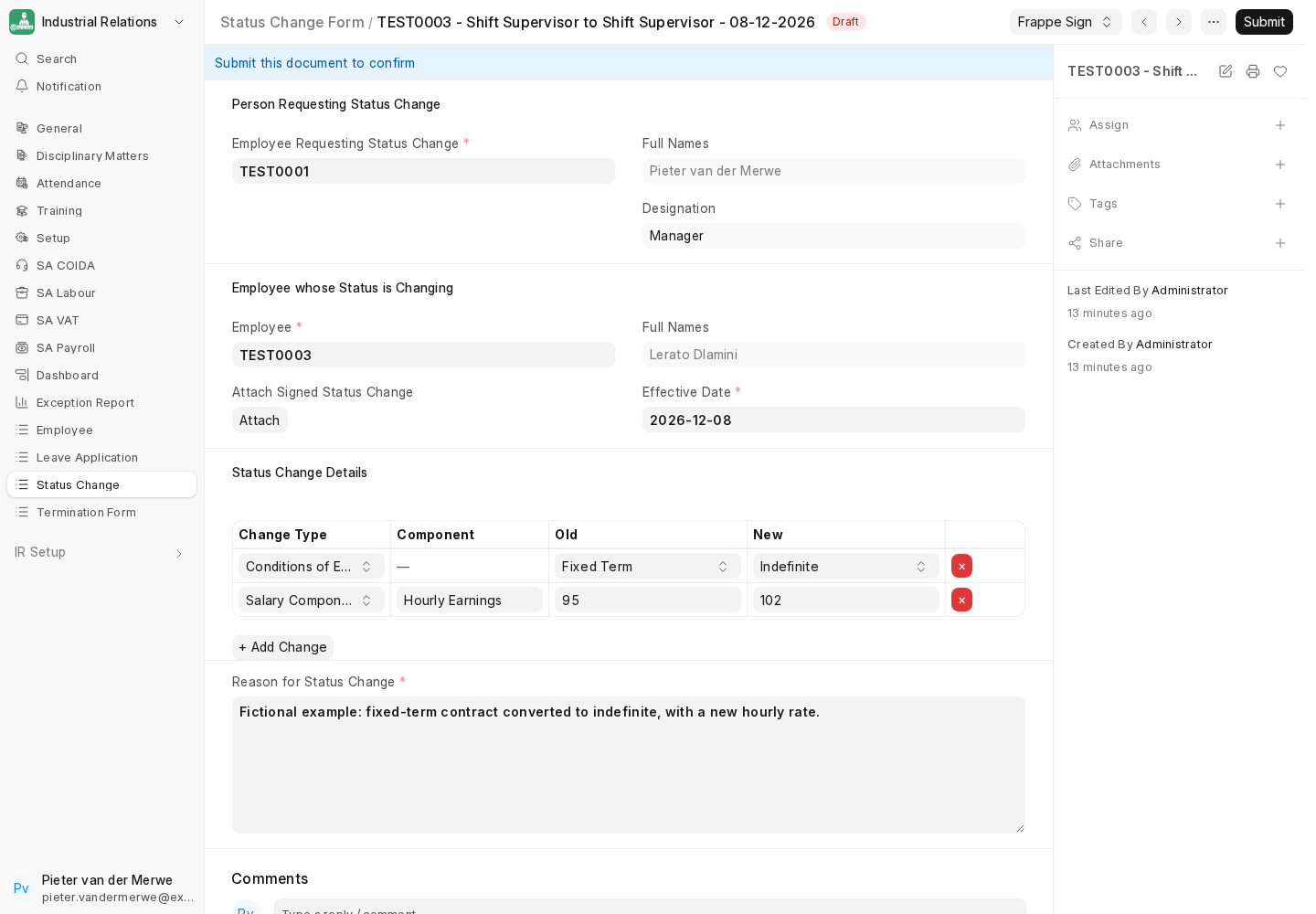
- Employee Requesting Status Change and the Employee whose Status is Changing. Their names (and the requester's designation) fill in automatically, along with the employee's Company and its letterhead.
- Effective Date and the Reason for Status Change.
- Status Change Details: one row per change. Click + Add Change, choose a Change Type, then fill in that row:
| Change Type | Component | Old | New |
|---|---|---|---|
| Designation | — | The employee's current designation, filled in for you | Pick the new Designation |
| Branch | — | The employee's current branch, filled in for you | Pick the new Branch |
| Conditions of Employment | — | Fixed Term, Project or Indefinite | Fixed Term, Project or Indefinite |
| Salary Component | An Earning salary component, e.g. Hourly Earnings, Basic Salary, Transport Allowance | The current amount | The new amount |
Only record what is actually changing. The red × removes a row. When the form is saved:
- the Old Designation and Old Branch are refreshed from the Employee record;
- any row whose old and new values are the same is dropped;
- a Salary Component that isn't an Earning type is rejected.
Each form is named after the employee, their current designation, the new designation and the effective date, for example EMP-0001 - Plant Operator to Shift Supervisor - 01-03-2027. When the designation isn't changing, both sides show the current designation (... Plant Operator to Plant Operator ...). Only one form can exist per employee, designation change and date.
Recording a site transfer
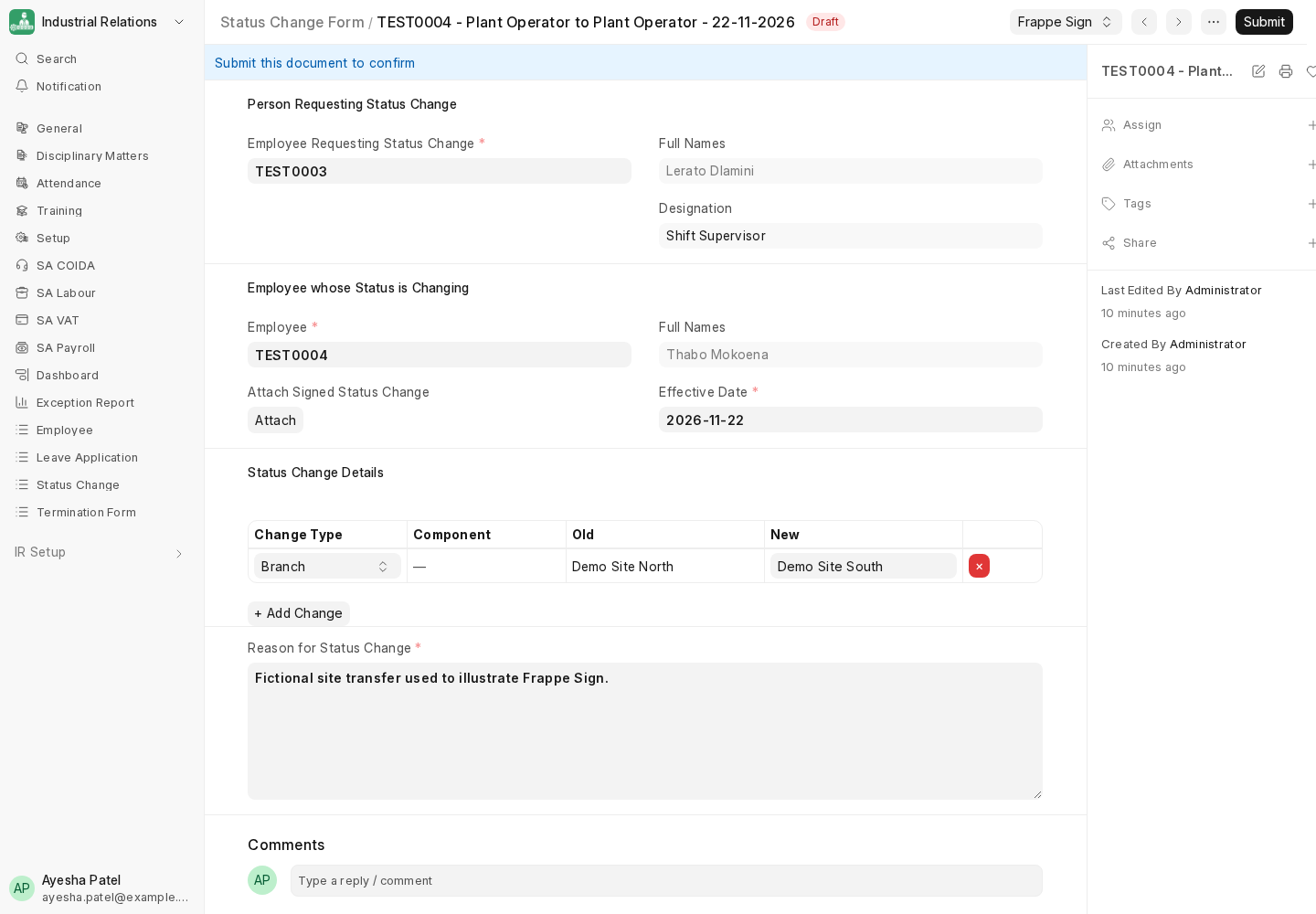
Add a single Branch row and pick the site the employee is moving to as New. The current site fills in as Old. Give the reason for the transfer.
What submitting does
A form can only be submitted when it has at least one change row and the signed form is attached under Attach Signed Status Change. On submission, ir updates the Employee record when a Designation or Branch row is present:
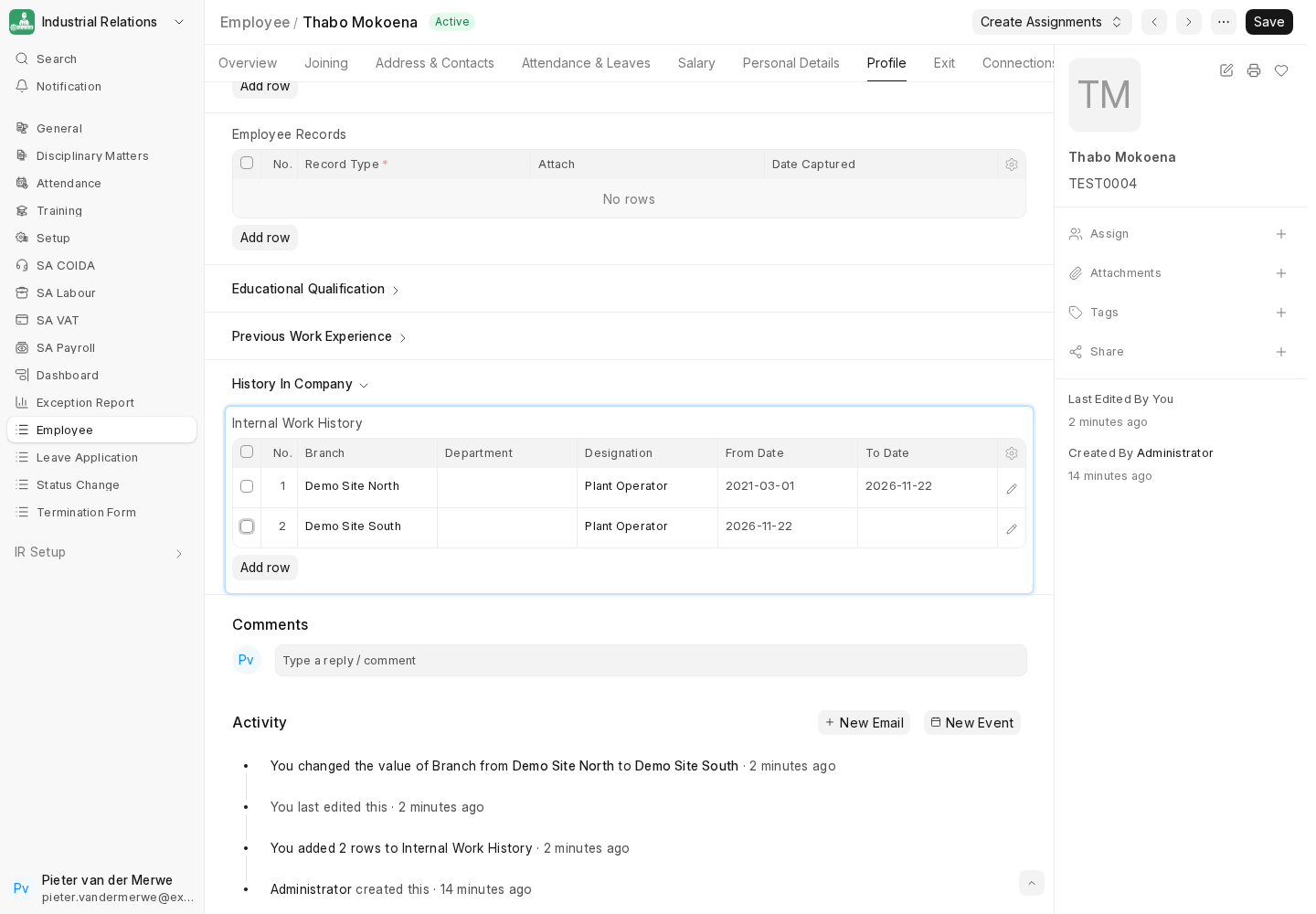
- Internal Work History: the open row is closed on the Effective Date, and a new row starts on that date with the new branch and/or designation. If the employee had no history yet, a row covering their time from the date of joining is added first.
- The employee's Designation and/or Branch are set to the new values.
Conditions of Employment and Salary Component rows are recorded on the form only. ir doesn't write them to the Employee or to salary records, so update the Salary Structure Assignment separately.
The Employee record changes when the form is submitted, not on the Effective Date. Submitting a form ahead of time changes the employee's current designation or branch immediately, while the work history shows the future date. If the employee's current branch or designation should only change on the day, submit the form on or after its Effective Date.
Known issue: after a Designation or Branch change has been submitted, the form's Old column displays the employee's current value, so it shows the new designation or branch on both sides. The stored values, and the printed form, still show the correct old value.
Printing
The Status Change Form print format lists:
- the employee details, effective date and Site Name;
- a Present / New row for each recorded change, and only those changes;
- a routing table for signatures (Site Manager, Area HR, HR HOD, Payroll and Relevant HOD);
- the reason, and the employee's acceptance and signature lines.
Site Name is read live from the Employee record, so it shows the old site before a transfer is submitted and the new site afterwards. The Branch row shows both.
Because the print only lists the recorded changes, it grows with each row. That moves the routing table and signature lines down the page, which matters for Frappe Sign templates (see below).
Existing forms
Forms created before this layout stored fixed current/new fields for designation, branch, conditions, the rate and six allowances. On migration, ir converted each of them into Status Change Details rows, keeping only the values that actually changed:
- Allowances map to their salary components, for example Travelling Allowance to Transport Allowance.
- The old Hourly / Basic Rate becomes Hourly Earnings, or Basic Salary for amounts above R1,000. If a change crossed that line, it becomes two rows: the old component going to 0, and the new one starting from 0.
- Submitted and cancelled forms were converted as they stood; nothing was re-submitted.
Notifications and access
Creating and submitting a form sends an alert to the configured recipients. Draft forms appear in the weekly Outstanding Employee Change Forms digest. Both are narrowed by Designation and Branch Limits, and so is access to the form itself. See IR Role Restrictions.
The limits use the employee's current designation and branch. A transfer is therefore handled by HR for the site the employee is leaving until it is submitted. After that, the employee belongs to the new site.
IR User can create and edit Status Change Forms but not submit them; IR Officer and HR Manager can submit.
Signing electronically with Frappe Sign
Status Change Form works well as a Frappe Sign source DocType. Configure it to attach the signed PDF to Attach Signed Status Change (field attach) and to submit the form when signing completes. The signed PDF then satisfies the attachment requirement, and the Employee record updates as soon as the last person signs. See Creating a Request - From a Frappe Document in the Frappe Sign documentation.
A Frappe Sign template only fits forms with the same number of change rows as its sample (see Templates). Check the field positions in the Designer before sending a request built from a template.
Next: Termination Form.